
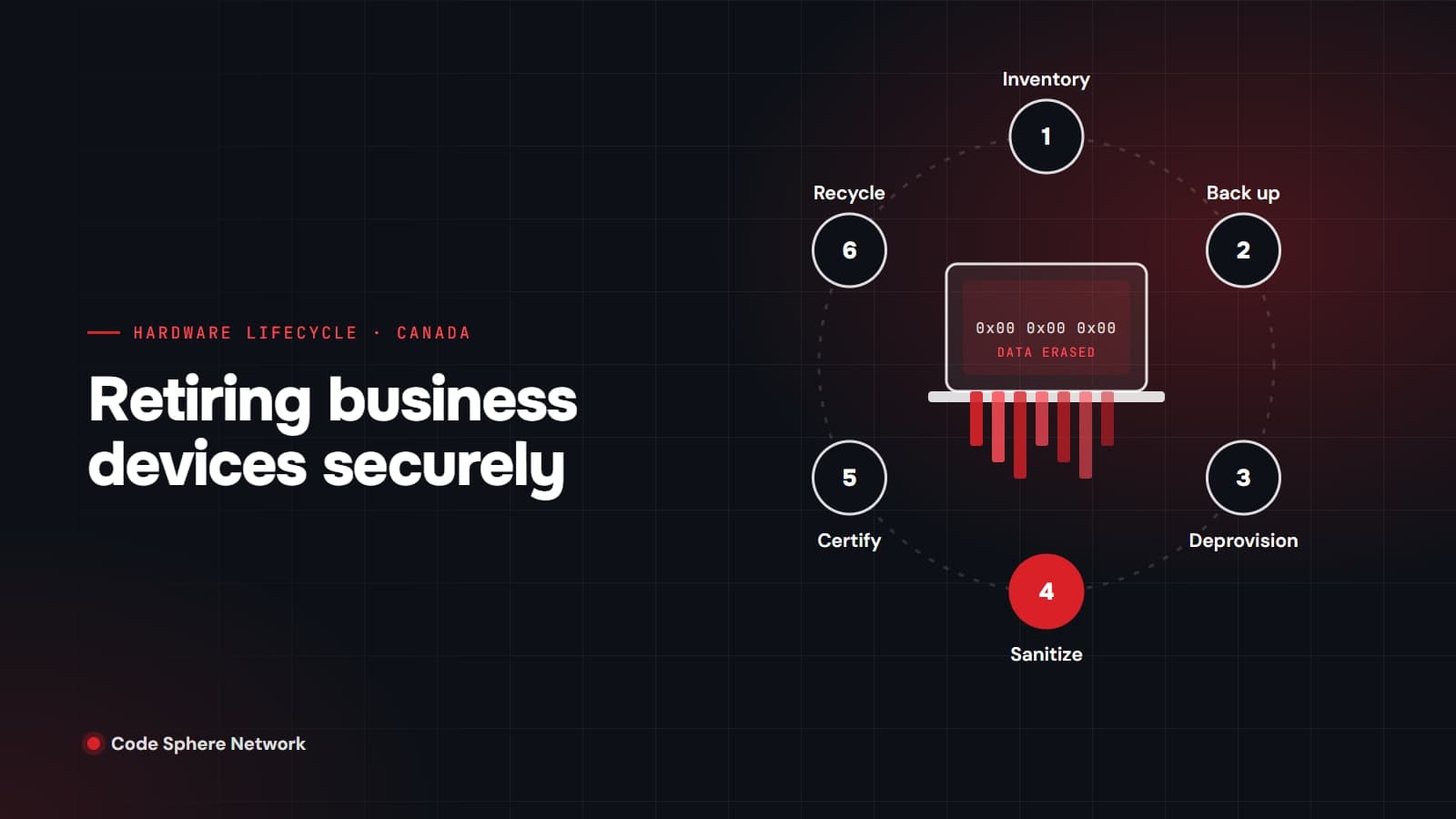
Short answer: to retire a business device securely in Canada, inventory it, back up anything you need, remove it from your management and identity systems, sanitize the storage with a method suited to the media (or physically destroy it), keep a record proving that was done, and then recycle it through an approved program. Deleting files or doing a factory reset is not enough. Privacy law requires you to take care when disposing of personal information, and the practical way to show that care is a documented, repeatable process.
Why device retirement is a privacy issue
Laptops, phones, servers, printers and even copiers hold personal information about staff and customers. When that equipment leaves your control, the information goes with it unless you remove it.
For most private-sector businesses in British Columbia, the governing law is BC's Personal Information Protection Act (PIPA). Section 34 requires organizations to make "reasonable security arrangements" against risks including unauthorized access and disposal, and section 35 requires them to destroy documents containing personal information, or make it anonymous, once it is no longer needed for legal or business purposes. The federal law, PIPEDA, still applies in BC to federally regulated businesses such as banks and telecommunications companies, and to personal information that crosses provincial or national borders. Its principles say that "care shall be used in the disposal or destruction of personal information, to prevent unauthorized parties from gaining access."
Neither law prescribes a particular wiping standard for private businesses. What they require is care and reasonable safeguards, and the recognized technical guidance below is how you demonstrate both.
Step 1: Inventory what you are retiring
Start with a list: device type, serial number, asset tag, assigned user and, most importantly, what storage it contains. Include equipment people forget. The BC Information and Privacy Commissioner's security self-assessment asks whether "the internal hard drives of faxes, scanners, and printers" are properly disposed of when equipment is replaced, and the federal Privacy Commissioner's guidance lists copier and printer hard drives, USB flash drives and mobile phones alongside computers.
Step 2: Back up and hand over the data you need
Before anything is erased, make sure business records have been copied to where they belong, such as SharePoint, a file server or the incoming user's device. Check your retention obligations too: under BC PIPA, personal information used to make a decision that directly affects someone must be kept for at least one year after that decision.
Step 3: Deprovision the device and the account
A device that is still enrolled in your management tools can cause problems long after it leaves the building. It may still appear as trusted, or be impossible for the next owner to set up.
- Microsoft Intune: use Wipe for company-owned devices. Microsoft describes it as a factory reset that "removes all personal and organizational data, apps, and configurations." Retire is the lighter option intended for personally owned devices, removing company data without a full reset.
- Windows Autopilot: Microsoft says a device that "permanently leaves an organization" should always be deregistered, and that it must be deleted from Intune first.
- Apple devices: in Apple Business (formerly Apple Business Manager), release devices that have been sold or cannot be repaired, and turn off Activation Lock so the device can be erased and reused.
- Accounts and licences: if the device retirement coincides with someone leaving, follow a leaver checklist. Microsoft notes that when a Microsoft 365 licence is removed, the user's mail, contacts and calendar are kept for 30 days and then permanently deleted, so preserve what you need first.
Step 4: Sanitize the storage properly
This is the step that actually protects the data, and it is where most shortcuts happen.
Deleting and formatting do not remove data. The Canadian Centre for Cyber Security states that "data is still recoverable when deleted or moved to the trash or recycle bin," and that after a factory reset "the data is not truly erased." Recovery tools can often retrieve photos, contacts and documents from drives that looked empty.
The most widely used reference is NIST Special Publication 800-88, Guidelines for Media Sanitization. Revision 2 was published in September 2025 and replaced the 2014 version. NIST says the guide may be used by non-government organizations on a voluntary basis, and it defines three levels:
- Clear: protects against simple, non-invasive recovery using the same interface available to the user.
- Purge: makes recovery infeasible "using state-of-the-art laboratory techniques" while leaving the device reusable. NIST recommends purge over clear when possible.
- Destroy: makes recovery infeasible and leaves the device unable to store data, for example by shredding or disintegration.
The right technique depends on the media:
- Solid-state drives, phones and tablets use flash memory with wear levelling. NIST explains that this makes it infeasible to reach all previous data by overwriting, and the Cyber Centre says overwriting is not suitable for most flash-based devices. Use the drive's built-in sanitize function or cryptographic erase, which NIST classes as a purge technique and which works by destroying the encryption key so the data becomes unreadable.
- Traditional hard drives can be sanitized with the drive's built-in sanitize command or overwritten with approved software. NIST's revision 2 notes that multi-pass overwriting "is not needed," and calls the old "DoD" multi-pass wipe language obsolete.
- Degaussing only works on magnetic media. It does nothing to SSDs, and NIST no longer treats it as a destroy technique.
- Drives that have failed, or that held especially sensitive information, should be physically destroyed.
Full-disk encryption from day one, such as BitLocker or FileVault, makes this step much easier, because cryptographic erase depends on the data having been encrypted in the first place.
Step 5: Keep records and a chain of custody
If you are ever asked how a device was disposed of, "we wiped it" is not an answer. NIST recommends completing a certificate of sanitization for each piece of media, and the Cyber Centre's IT media sanitization guidance calls for chain-of-custody records "showing who has been in possession of the Media, and all actions taken with the media."
A good record includes the serial number, the method used (clear, purge or destroy), who did it, when, and how the result was checked. If you use an outside provider, the federal Privacy Commissioner advises choosing one with verifiable credentials and keeping a way to monitor the disposal. Recognized certifications in this field include i-SIGMA's NAID AAA for data destruction and SERI's R2v3 for electronics recyclers.
Step 6: Recycle responsibly in British Columbia
Once the data is gone, the hardware still needs to be handled properly. BC runs an extended producer responsibility program for electronics under the provincial Recycling Regulation. Through Return-It Electronics, operated for the Electronic Products Recycling Association (EPRA), accepted products can be dropped off without charge, and pickup is available at no cost for larger volumes when the program's requirements are met. Accepted items include laptops, desktops (including those used as servers), printers, networking equipment, phones and monitors.
One important caveat: recycling programs are not a data destruction service. Return-It's own guidance says you need to take adequate steps to ensure no private data remains on your products before you return them. Sanitize first, recycle second.
A device retirement checklist
- Record the device, serial number, user and storage type
- Back up business data and confirm any retention requirements
- Wipe and remove the device from Intune, then deregister it from Autopilot
- Release Apple devices from Apple Business and clear Activation Lock
- Preserve mailbox and OneDrive data before removing a leaver's licence
- Sanitize with a method matched to the media, or physically destroy it
- Issue a certificate of sanitization for every drive
- Recycle through Return-It Electronics or a certified recycler
How Code Sphere Network retires devices
Certified secure data destruction is part of the hardware lifecycle service within our managed IT services. We handle procurement, deployment and end-of-life disposal, with digital wiping or physical shredding, so retired laptops and servers do not leak business data. If you are a Vancouver business with a pile of old equipment in a storage room, see Managed IT Services Vancouver or book a free consultation and we will help you plan a documented retirement.
Sources
- Justice Canada: PIPEDA, Schedule 1 (principles 4.5.3, 4.7 and 4.7.5)
- Office of the Privacy Commissioner of Canada: Provincial laws that may apply instead of PIPEDA
- BC Laws: Personal Information Protection Act, sections 34 and 35
- OIPC BC: Securing personal information, a self-assessment
- Office of the Privacy Commissioner of Canada: Personal information retention and disposal
- NIST SP 800-88 Rev. 2: Guidelines for Media Sanitization
- Canadian Centre for Cyber Security: IT media sanitization (ITSP.40.006)
- Canadian Centre for Cyber Security: Sanitization and disposal of electronic devices (ITSAP.40.006)
- Microsoft Learn: Wipe devices with Microsoft Intune
- Microsoft Learn: Device action, Retire
- Microsoft Learn: Windows Autopilot registration overview
- Microsoft Learn: Remove a former employee
- Apple: Release devices in Apple Business
- Apple: Activation Lock on Apple devices
- Return-It Electronics: FAQs
- EPRA: What can I recycle in BC
- BC Laws: Recycling Regulation, B.C. Reg. 449/2004
- i-SIGMA: NAID AAA certification
- SERI: R2 standard
About Code Sphere Network Team
Code Sphere Network Inc. is a Vancouver-based managed IT, cybersecurity, cloud and AI automation provider serving businesses across Canada. Our team writes these guides from the work we do for clients every day.
