
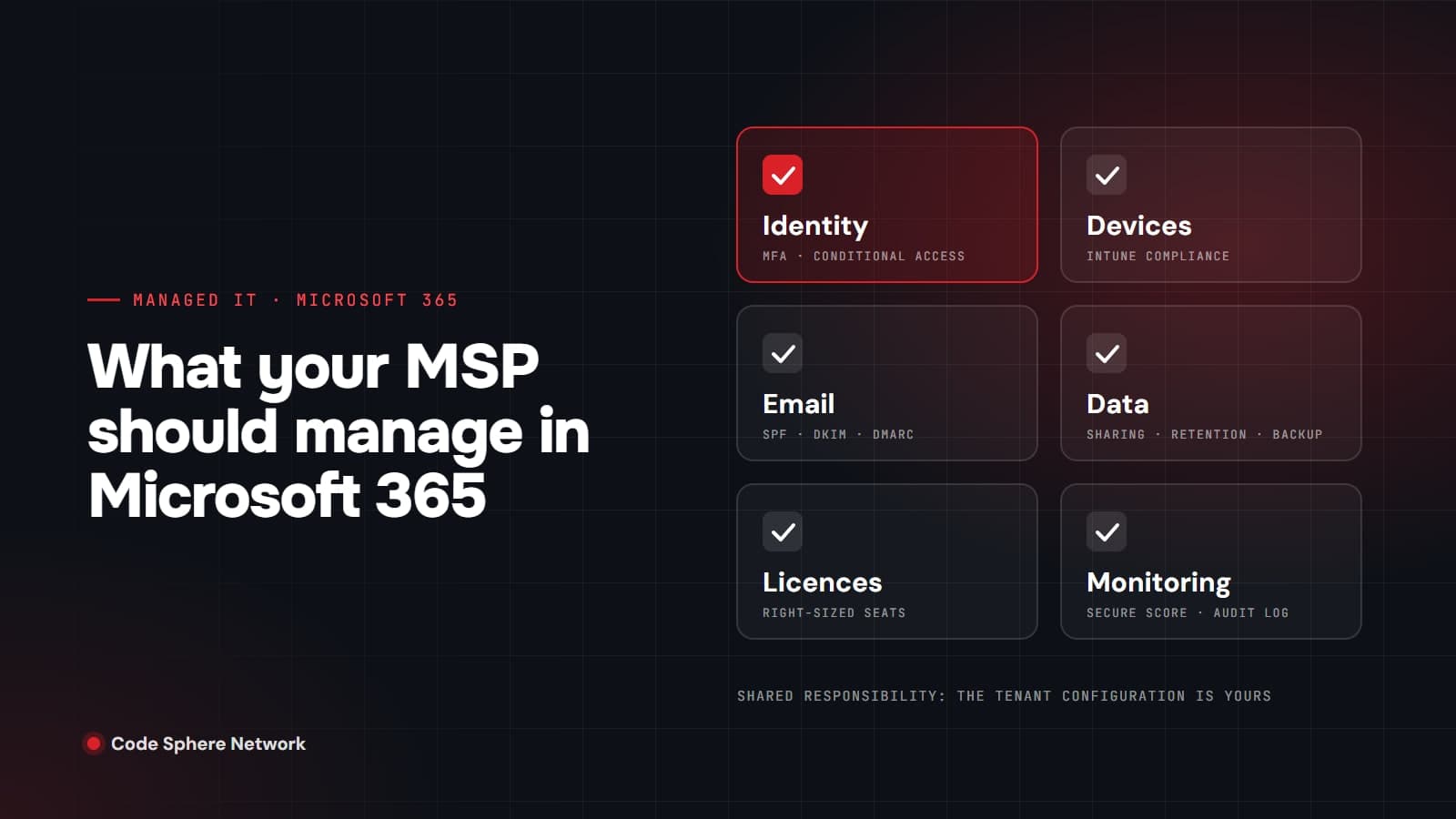
Short answer: your MSP should manage the parts of Microsoft 365 that Microsoft leaves to you. That means sign-in security and identities, admin roles, devices, email authentication, sharing and data protection, licences, monitoring, and the process for people joining and leaving. Microsoft runs the datacentres and the service itself, but the way your tenant is configured is your responsibility, and most growing businesses hand that work to a managed service provider.
Why "Microsoft handles it" is only half true
Microsoft publishes a shared responsibility model for its cloud services, and Microsoft 365 sits in the software-as-a-service column. Microsoft looks after the physical hosts, network and datacentres. The customer, as Microsoft puts it, will "own your data and identities" in every deployment type. Its model lists data, endpoints, accounts and access management as responsibilities you always keep.
In plain terms, Microsoft keeps Exchange Online running. It does not decide who can sign in to your mailbox, whether a stolen password is enough to get in, or whether a departing employee's files are kept or lost. Those are configuration decisions, and they are the core of what an MSP should manage.
1. Sign-in security and identities
Identity is the front door, so it comes first. Microsoft's own documentation states that multifactor authentication (MFA) "can block over 99.2% of identity-based attacks," and the Canadian Centre for Cyber Security recommends MFA "where possible to protect high-value business services and data."
- Turn on MFA for every account, not just administrators. The Cyber Centre notes that FIDO-based methods, such as passkeys and security keys, are strongly recommended.
- Choose the right enforcement model. Security defaults give smaller tenants a free baseline that requires MFA registration and blocks legacy authentication. If you have Microsoft Entra ID P1 or P2 licences, Microsoft says security defaults are "probably not right for you" and recommends Conditional Access policies instead.
- Build a baseline Conditional Access policy. Microsoft recommends one that targets all users and all resources and requires MFA, with only emergency and approved service accounts excluded.
- Block legacy sign-in methods that cannot do MFA, so attackers cannot simply go around it.
2. Admin roles and emergency access
Admin accounts are the keys to the whole tenant, so an MSP should keep them few, separate and watched.
- Keep Global Administrators to a minimum. Microsoft recommends assigning the role "to fewer than five people in your organization."
- Apply least privilege. Give each administrator only the role they need, and use just-in-time elevation through Privileged Identity Management where your licensing includes it.
- Use separate, cloud-only admin accounts rather than giving admin rights to everyday user accounts. The Cyber Centre's baseline controls also say administrative accounts for cloud services should use two-factor authentication and differ from internal administrator accounts.
- Keep two or more emergency access ("break-glass") accounts. Microsoft recommends protecting them with phishing-resistant authentication, alerting on every sign-in, and testing them at least every 90 days.
3. Devices
A secure identity on an insecure laptop is still a risk. Microsoft Intune lets your MSP enrol company devices, push configuration and set compliance policies, which Microsoft describes as "sets of rules and conditions that you use to evaluate the configuration of your managed devices." Conditional Access can then block devices that fall out of compliance, such as a laptop with disk encryption turned off.
One setting deserves a specific check. By default, Intune treats devices with no compliance policy assigned as compliant. Microsoft advises changing that to "not compliant" when you rely on Conditional Access, so that unmanaged devices do not slip through.
Your MSP should also track software lifecycles. Windows 10 and Office 2016 and 2019 all reached end of support on October 14, 2025. Machines still running them no longer receive regular security fixes and should be on a replacement plan.
4. Email authentication and security
Email is still the most common way attacks arrive, and much of the protection depends on DNS records that someone has to set up and maintain.
- SPF lists the servers allowed to send mail for your domain.
- DKIM signs outgoing messages so recipients can confirm they were not altered.
- DMARC tells receiving servers what to do with messages that fail those checks, and where to send reports.
Microsoft's guidance is blunt: "Anything less than all of the email authentication methods results in substandard protection." It recommends rolling DMARC out in stages, from monitoring (p=none) through quarantine to reject, with "a p=reject DMARC policy for all of your custom domains" as the goal. That includes parked domains you do not send mail from, which attackers can otherwise spoof.
5. Sharing, retention and backup
This is the area businesses most often assume is handled for them.
Sharing settings control who can see your files. SharePoint and OneDrive support several organization-wide levels, from "Anyone" links through guest access down to people inside your organization only. Each site can be the same or more restrictive than the organization setting. An MSP should choose those levels deliberately, set expiry on "Anyone" links and review guest access regularly.
Retention and backup solve different problems. Microsoft Purview retention policies exist for compliance: they keep content so it is protected from permanent deletion and remains available for eDiscovery. That is useful, but it is not designed as a restore plan for ransomware or a mass deletion. For that, Microsoft sells a separate Microsoft 365 Backup service covering SharePoint, OneDrive and Exchange, and third-party backup products are also widely used. The Cyber Centre's baseline controls recommend that organizations back up systems that contain essential business information, and the only way to know a backup works is to test a restore.
6. Licences
Licensing is partly about cost and partly about security, because features such as Conditional Access depend on the licence tier. An MSP should keep an up-to-date licence inventory, remove seats from leavers promptly, and make sure each user has the plan their role needs. Unused licences for former staff are a common source of waste, and an active account for someone who has left is a security risk.
7. Monitoring and reporting
Configuration drifts over time, so someone needs to watch it.
- Microsoft Secure Score measures your security posture based on recommended actions taken. Microsoft notes it "isn't an absolute measurement" of breach risk, but it is a useful way to track progress and find gaps.
- Microsoft's standard audit log is on by default and retains records for 180 days. Your MSP should know how to search it and when longer retention is worth paying for.
- Alerts should go to a person who acts on them, especially sign-ins from emergency accounts and changes to admin roles.
- For a structured external check, the US Cybersecurity and Infrastructure Security Agency publishes free secure configuration baselines for Microsoft 365, along with ScubaGear, a no-cost tool that checks a tenant against them.
8. Joiners, movers and leavers
People changes are where security gaps quietly open up. Microsoft's own checklist for a departing employee is to block sign-in, preserve the mailbox, wipe and block mobile devices, forward email or convert the mailbox to a shared mailbox, give someone access to the person's OneDrive and Outlook data, remove the licence and finally delete the account.
The order matters. Microsoft notes that when a licence is removed, the former employee's email, contacts and calendar are kept for 30 days and then permanently deleted. Removing the licence before preserving the data can cost you records you needed. A good MSP runs onboarding and offboarding from a written checklist, every time.
A checklist to review with your MSP
- MFA enforced for all users, with phishing-resistant methods for admins
- Security defaults or a baseline Conditional Access policy in place, not neither
- Fewer than five Global Administrators, with separate admin accounts
- Two tested emergency access accounts with sign-in alerts
- Company devices enrolled in Intune with compliance policies enforced
- SPF, DKIM and DMARC on every domain, moving towards p=reject
- Sharing levels and guest access reviewed on a schedule
- A backup that covers mailboxes, OneDrive and SharePoint, with tested restores
- Licences reconciled against current staff every month
- Secure Score and audit alerts reviewed regularly
- Written onboarding and offboarding procedures
How Code Sphere Network manages Microsoft 365
Microsoft 365 administration is part of our managed IT services: licence management, tenant security, mailbox setup, MFA enforcement and ongoing governance, including Intune and Entra ID configuration so devices and identities stay locked down. For businesses moving mail or files into Microsoft 365 from another platform, our cloud services team plans the migration.
If you are in the Lower Mainland, see what is included in Managed IT Services Vancouver, or book a free consultation and we will review your current tenant against this checklist.
Sources
- Microsoft Learn: Shared responsibility in the cloud
- Microsoft Learn: Security defaults in Microsoft Entra ID
- Microsoft Learn: Require MFA for all users with Conditional Access
- Microsoft Learn: Manage emergency access accounts
- Microsoft Learn: Best practices for Microsoft Entra roles
- Microsoft Learn: Intune compliance policies overview
- Microsoft Learn: Email authentication in Microsoft 365
- Microsoft Learn: Set up DMARC
- Microsoft Learn: Manage sharing settings for SharePoint and OneDrive
- Microsoft Learn: Learn about retention policies
- Microsoft Learn: Microsoft 365 Backup overview
- Microsoft Learn: Microsoft Secure Score
- Microsoft Learn: Auditing solutions in Microsoft Purview
- Microsoft Learn: Remove a former employee
- Microsoft Learn: Products reaching end of support in 2025
- Canadian Centre for Cyber Security: Baseline cyber security controls for small and medium organizations
- Canadian Centre for Cyber Security: Secure your accounts and devices with multi-factor authentication (ITSAP.30.030)
- CISA: Secure Cloud Business Applications (SCuBA) project
About Code Sphere Network Team
Code Sphere Network Inc. is a Vancouver-based managed IT, cybersecurity, cloud and AI automation provider serving businesses across Canada. Our team writes these guides from the work we do for clients every day.
